.svg)


Key Takeways
With CleverTap integration, you can start using Message Central’s global SMS connectivity along with CleverTap’s capabilities for your campaigns.
Prerequisites for Integration
Before you begin with integration, ensure you have:
- A Message Central account with SMS permissions
- A CleverTap account
Integration Steps
This process involves the following three significant steps:
- Message Central Account Details
The following details would be required. For this you need to create an account in Message Central. The following parameters are required: Bullet Points
Customer ID - You can get your customer Id from Message Central home page
Email - This is the email with which you have created your account
Password - This is the password with which you have created your account
- Adding Message Central Details on CleverTap Dashboard
Please follow the below steps to add Message Central details on CleverTap dashboard: -
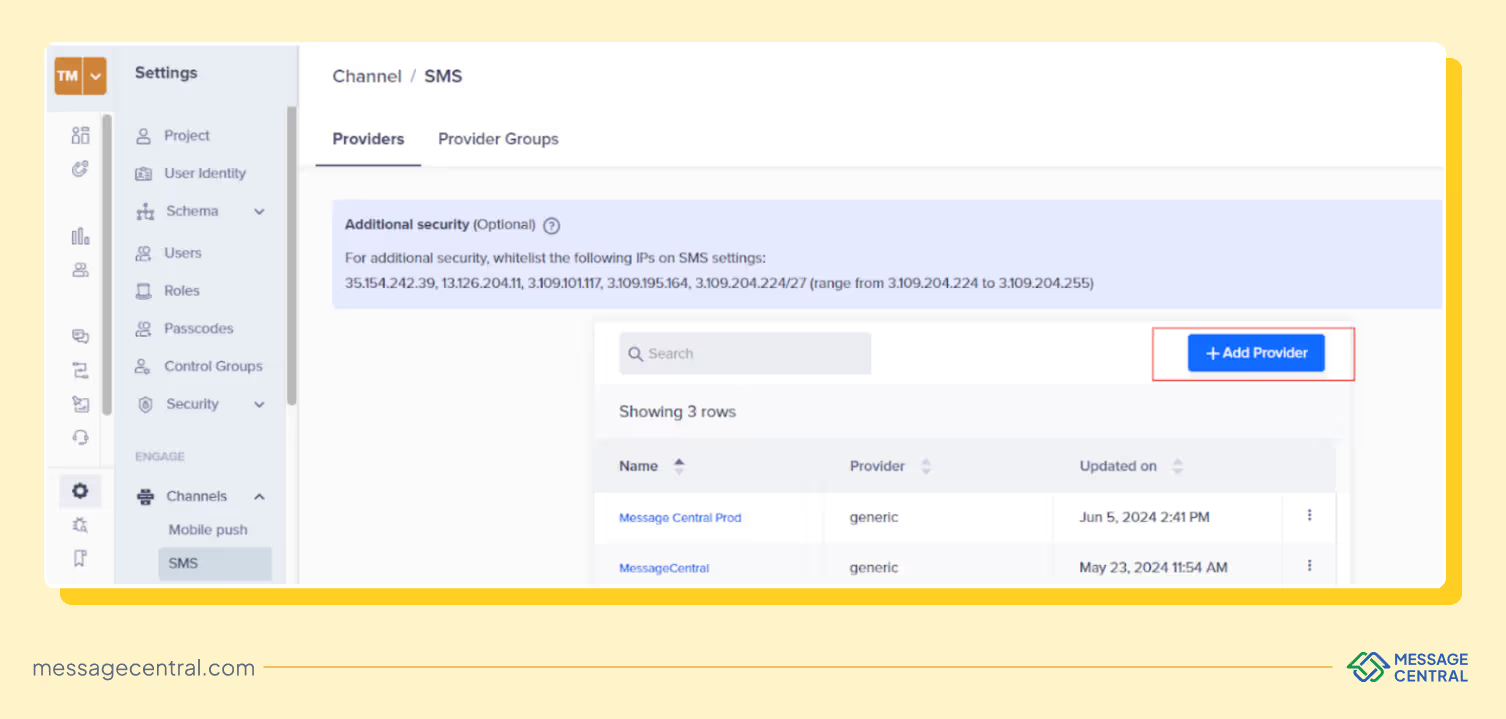
Step 1 - After logging into dashboard, navigate to Settings > Channels > SMS
Step 2 - Click on “+Add Provider”. (please check the image below)
Step 3 - Under Setup, enter the following details:
Step 4 - Under Header, enter the following Keys with respective values
You need to click on “Add Pairs“ to enter 5 Keys & values listed below:
Step 5 - Under Parameters, select Type as Json and paste the below code
Step 6 - Click Save to save the details.
In case there is an error: Dynamic Variable cannot be added or deleted.
Just wait for a few minutes and click save.
Send a Test SMS
To ensure that the integration is successful, send a test SMS as follows:
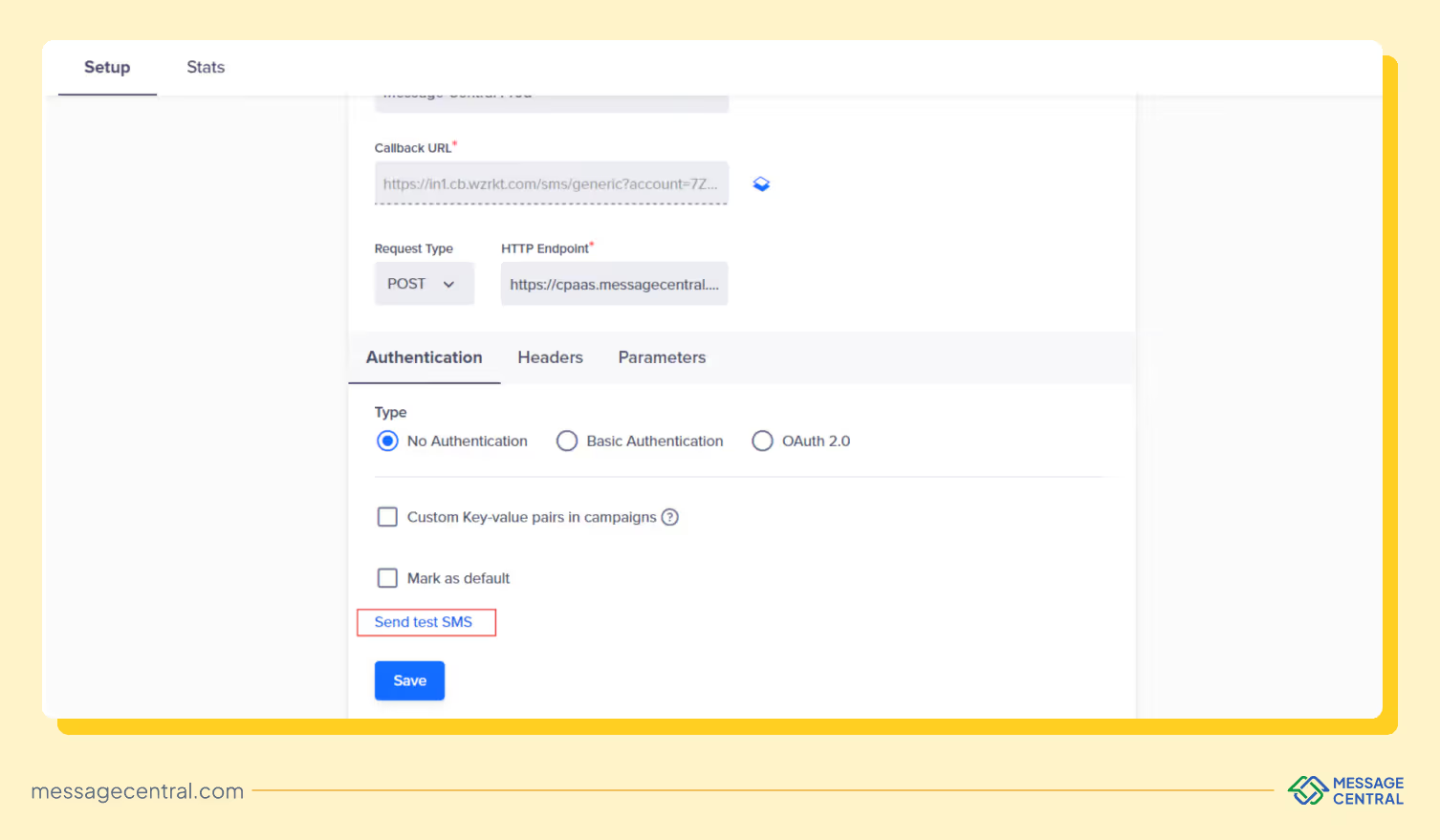
- Click the “Send Test SMS” before creating SMS campaigns and journeys.
(You can find the ‘Send test SMS’ button above ‘Save’ button)
- Enter the following details:
- Country Code and Mobile Number: Enter the country code and mobile number to which you want to send the test message
- Message: Eg - Welcome to Message Central. We are delighted to have you here! - Powered by U2opia
NOTE: You need to enter your whitelisted content or message which is approved by DLT for your SenderID.