Key Takeways
Introduction: The Power of Visual Storytelling
In a world where video content dominates social media, marketing, and entertainment, the ability to craft visually compelling stories is no longer optional—it’s essential. Whether you’re a content creator, a small business owner, or a hobbyist, the tools you use can make or break your creative vision. Enter CapCut, a free video editing software that has quietly evolved from a mobile-first app into a robust desktop powerhouse. While it’s often overshadowed by industry giants like Adobe Premiere or DaVinci Resolve, CapCut’s advanced toolkit offers a unique blend of simplicity and sophistication, making professional-grade editing accessible to everyone.
In this deep dive, we’ll explore how CapCut empowers users to elevate their visuals, streamline workflows, and produce cinematic-quality content without the steep learning curve. From color grading secrets to AI-driven effects, let’s unlock the full potential of this underrated gem.
The Foundation—CapCut’s Interface and Workflow
Before diving into advanced techniques, it’s crucial to understand the canvas you’re working with. CapCut’s desktop interface is designed for efficiency, balancing user-friendly layouts with professional-level customization.
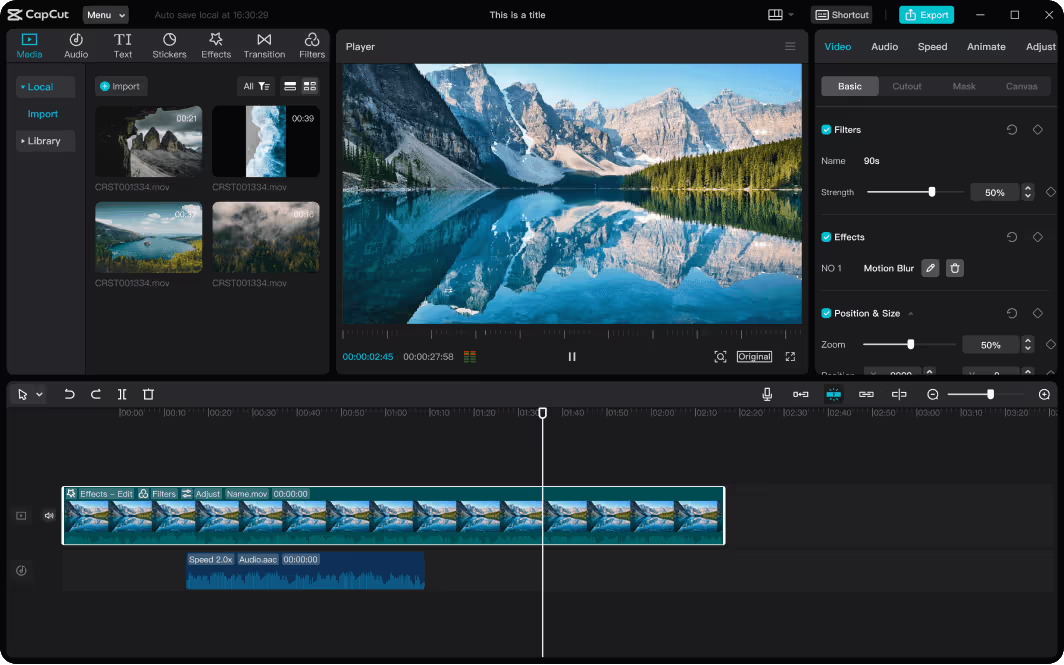
Key Features:
- Multi-Track Timeline: Unlike its mobile counterpart, the desktop version supports unlimited layers of video, audio, and text. This is a game-changer for complex projects like vlogs, short films, or layered animations.
- Customizable Workspaces: Rearrange panels to suit your workflow. For example, drag the preview window to a second monitor for full-screen editing.
- Keyboard Shortcuts: Speed up your process with shortcuts for slicing (Ctrl+B), splitting (Ctrl+K), or toggling between tools.
Why It Matters:
A cluttered interface can stifle creativity. CapCut minimizes distractions while offering depth where needed. For instance, YouTuber Lena DIY shared in a 2023 interview how switching to CapCut reduced her editing time by 30%: “I’m not buried under menus anymore. Everything I need is right there.”
Color Grading Like a Pro
Color grading is where good footage becomes great. CapCut’s color tools rival those of premium software, offering precision without complexity.
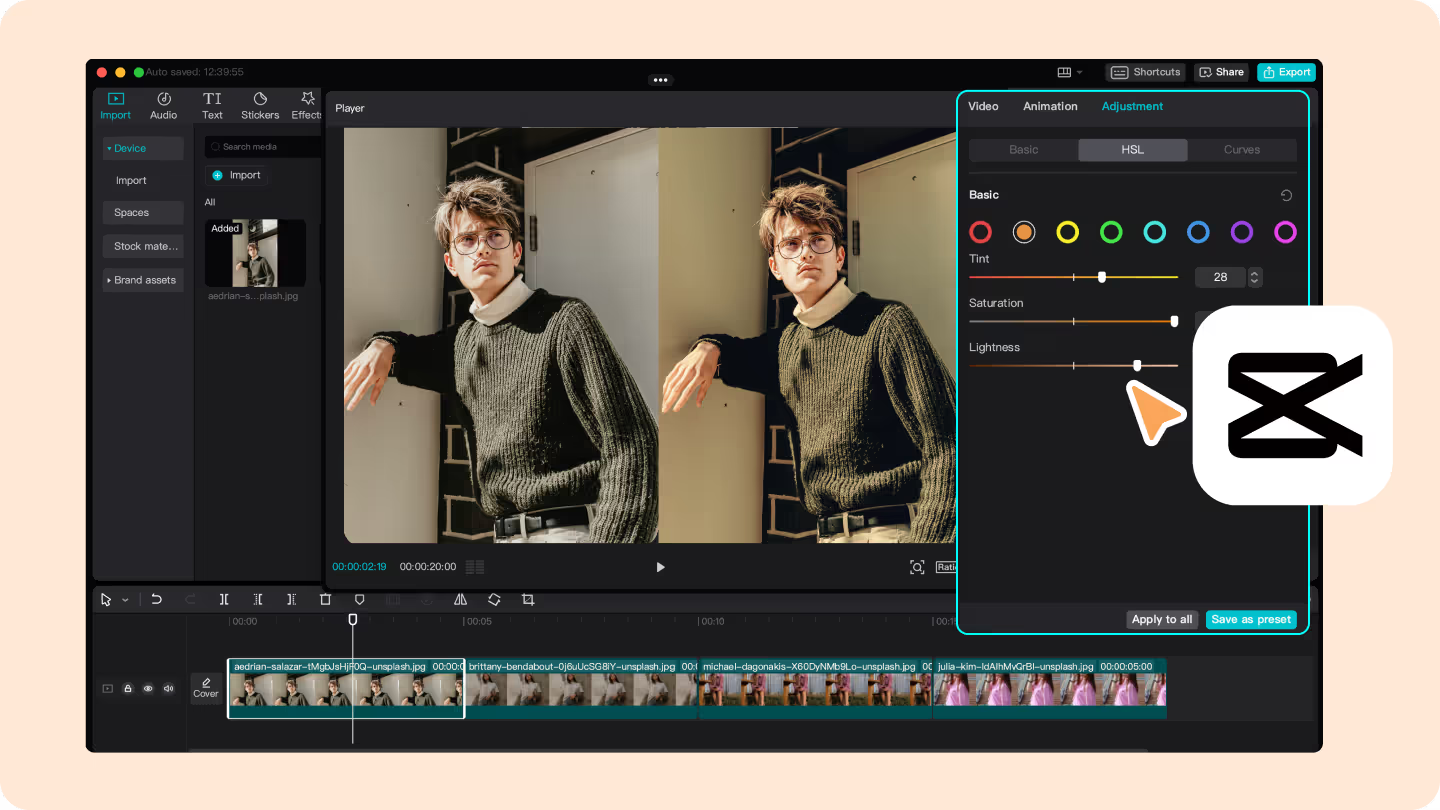
Tools to Master:
- Curves Adjustment: Fine-tune shadows, midtones, and highlights with RGB curves. For a cinematic look, try the classic “S-curve” (lifting shadows slightly and gently crushing blacks).
- LUTs (Look-Up Tables): Apply pre-made color presets or import custom LUTs. CapCut’s library includes filters emulating blockbuster styles (e.g., “Moody Noir” or “Golden Hour”).
- Selective Color Correction: Isolate and adjust specific hues. For example, make a dull sky pop by targeting blues and cyans.
Case Study:
Travel creator Adventure Alex used CapCut’s color grading suite to salvage poorly lit footage from a rainforest expedition. By tweaking the luminance curve and applying a custom LUT, he transformed murky greens into vibrant, immersive scenes—resulting in a 40% increase in viewer engagement on his YouTube channel.
Motion and Magic—Keyframes and Effects
Static shots are so 2010. CapCut’s motion tools let you add dynamism to every frame.
Advanced Techniques:
- Keyframe Animation: Animate position, scale, rotation, or opacity over time. For example:
- Create a dramatic zoom-in on a climactic moment.
- Fade text in/out with custom easing (smooth acceleration/deceleration).
- Motion Tracking: Attach text or graphics to moving objects. Imagine adding floating captions that follow a skateboarder mid-trick.
- Green Screen (Chroma Key): Replace backgrounds seamlessly. Pro tip: Use CapCut’s edge feathering to avoid harsh outlines.
Real-World Example:
Indie filmmaker Sophia Cruz used motion tracking in her short film *“Echoes”* to superimpose ghostly apparitions into live-action scenes. “It felt like having a mini-VFX team in my laptop,” she remarked.
AI-Powered Efficiency
CapCut integrates artificial intelligence to handle tedious tasks, freeing you to focus on creativity.
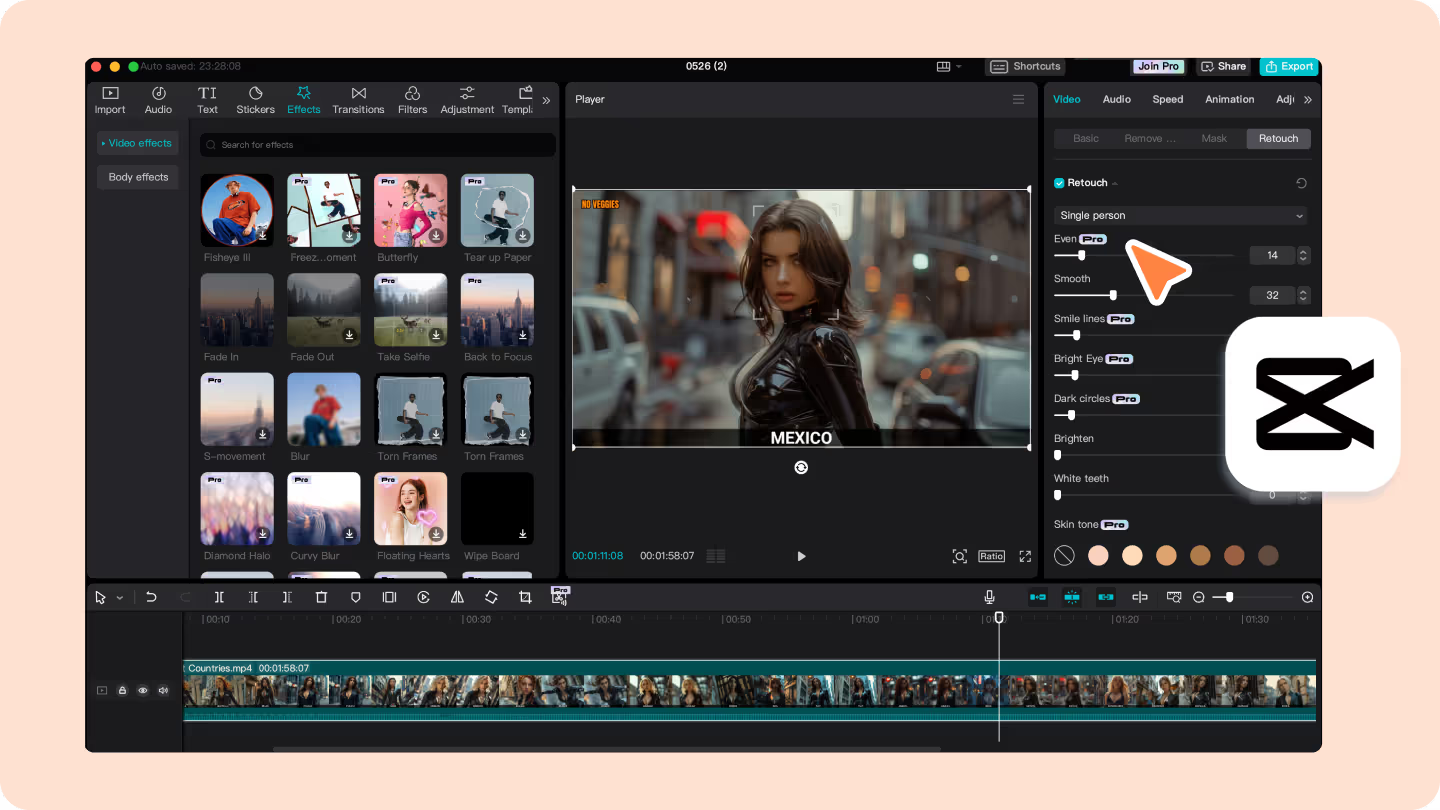
Standout AI Tools:
- Auto Reframe: Let AI detect subjects and recompose shots for different aspect ratios (e.g., convert a horizontal video to vertical for TikTok without losing key elements).
- Speech-to-Text: Generate accurate captions in seconds. Edit the transcript directly, and the video updates automatically—a lifesaver for accessibility.
- Background Removal: Instantly isolate subjects without manual masking.
If your project is highly complex and requires regular video editing, then you can choose the premium plan that gives more features, or you can also choose Premium Free AI video generator software.
Stat Spotlight:
A 2023 survey by Content Creators Weekly found that 68% of editors using AI tools reported higher productivity. CapCut’s auto-reframe alone saves creators an average of 2 hours per project.
Collaboration and Exporting
Great editing is often a team effort. CapCut’s cloud-based collaboration lets multiple users work on the same project in real-time—a rarity in free editing software.
Pro Tips for Exporting:
- Bitrate Settings: For crisp visuals, use a higher bitrate (e.g., 20–30 Mbps for 1080p).
- Format Choices: Export as MP4 for broad compatibility or MOV for higher quality.
- Custom Presets: Save frequently used settings (e.g., “4K Instagram Reel”) to skip repetitive adjustments.
Collaboration Success Story:
Marketing agency BrightWave Media used CapCut’s cloud features to coordinate a 10-person team on a global ad campaign. “It felt like Google Docs for video editing,” said project lead Jamal Chen.
Conclusion: Your Gateway to Visual Brilliance
CapCut’s desktop software proves that you don’t need a Hollywood budget to create stunning visuals. Its blend of intuitive design, advanced tools, and AI-powered smarts makes it a standout choice for creators at any level. Whether you’re color-grading a documentary, animating a lyric video, or collaborating with a remote team, CapCut provides the toolkit to turn raw clips into polished masterpieces.
As the digital landscape grows more competitive, investing time in mastering these tools isn’t just about keeping up—it’s about standing out. So fire up CapCut, experiment fearlessly, and let your creativity run wild. After all, the next viral video could be just a few clicks away.